Drag-and-Drop Interface Explained for Customer Support Teams
Your support team is drowning in repetitive queries while developers sit on a backlog of bot requests. Every new FAQ or order update flow waits weeks for code, and customers feel the delay in slow replies and missed handoffs. That bottleneck is a process problem, not a hiring problem. A fuller comparison of Whatsapp Business API is worth reading alongside this.
This article breaks down how a drag-and-drop interface lets support teams build and launch conversation flows without writing code. You will learn the core building blocks of visual workflows, the support use cases worth automating first, how to evaluate platforms across channels and integrations, and how Com.bot's visual bot builder fits into that decision.
What Is a Drag-and-Drop Interface?
A drag-and-drop interface is a graphical user interface (GUI) that lets users move visual elements, such as buttons, form fields, or workflow steps, by clicking and dragging them with a mouse or touch gesture. Instead of typing commands or editing configuration files, a person picks up an on-screen object and places it where it belongs.
This interaction model differs sharply from command-line or code-based configuration. A script requires exact syntax, correct parameters, and a working knowledge of the underlying system. A drag gesture, by contrast, relies on spatial reasoning that most computer users already have.
Common examples appear across many types of software:
- Kanban boards for task and ticket management, where cards move between columns
- Visual editors and WYSIWYG tools for building pages or layouts
- No-code builders for workflow automation and form design
The result is a shorter learning curve. Non-technical users can complete complex tasks without memorizing commands, which matters greatly in customer support where agent time is limited and tools must be usable on day one.
How Visual Workflows Replace Code for Support Teams
For customer support teams, visual workflows replace traditional code by allowing agents and managers to design automation sequences, like ticket routing or auto-responses, using a drag-and-drop canvas instead of scripting languages. The builder hides the technical layer and exposes only the building blocks.
In a code-based setup, someone might write API calls, handle authentication, parse JSON responses, and add error handling. A visual builder abstracts that logic into pre-built blocks that snap together on screen. Typical blocks include:
- Triggers such as a new support ticket or an updated status
- Conditions such as priority level, customer tier, or keyword match
- Actions such as ticket routing, priority assignment, or an auto-reply
Each block carries its own configuration form. The user selects values from dropdowns and toggles rather than writing expressions. Under the hood, the platform may use the HTML5 drag and drop API, JavaScript dragstart, dragover, and drop events, or pointer events, but the user never sees that machinery.
Consider a concrete example: building a support ticket triage flow. An agent drags a trigger for "new ticket" onto the canvas, connects it to a condition that checks whether the subject contains "billing," then links that branch to an action that assigns the ticket to the billing queue. A second branch routes everything else to general support. No scripting is required, and the flow can be tested and adjusted by dragging blocks into new positions.
This approach reduces the need for developer involvement. Support managers can deploy a routing change in minutes rather than filing a ticket with an engineering team and waiting for a sprint. Deployment accelerates because the person closest to the problem holds the controls. It also lowers the barrier for iteration: if a rule misfires, the manager edits the canvas instead of requesting a code fix.
There are limits worth noting. Complex logic, unusual integrations, or high-volume edge cases may still call for custom code, and many builders offer an escape hatch for exactly that reason. Accessibility also deserves attention, since drag gestures can be difficult for some users. Well-designed tools provide a keyboard alternative and proper ARIA labeling so screen reader users can operate the same canvas.
For most routine support automation, though, the visual approach wins on speed and clarity. A queue management change that once took days of coordination becomes a five-minute edit on a task board that any team lead can understand.
Why Customer Support Teams Benefit from Drag-and-Drop Builders
Drag-and-drop builders give the power to customer support teams to automate repetitive tasks, streamline ticket management, and deploy new workflows rapidly without waiting on engineering resources. Instead of filing requests and waiting for a development sprint, support managers can adjust routing logic, update messages, and refine queue behavior on their own schedule.
The result is a team that can respond to changing customer expectations in real time. Speed, autonomy, and adaptability are the core advantages that make a visual editor so valuable for a busy help desk.
This section explains how that shift plays out in practice, covering faster response setup and reduced reliance on developers.
Faster Response Setup and Fewer Handoffs
With a drag-and-drop builder, support teams can set up automated responses and routing rules in minutes, drastically reducing the time between ticket creation and agent assignment. A visual editor lets a manager connect a trigger to an action by dragging a block onto a canvas, so a rule like if ticket priority is high, assign to senior agent takes shape without any scripting.
Common examples support teams build this way include:
- If a keyword matches refund, route the ticket to the billing queue.
- If a customer writes in Spanish, tag the ticket and send it to a bilingual agent.
- If an order status shows as shipped, attach a tracking link and set the status to pending.
Each rule removes a manual step. Fewer handoffs mean fewer places for a support ticket to stall, which shortens resolution time and improves the customer experience.
A practical example shows the value clearly. A flow that reads the customer's language and order status can tag the ticket, drop it into the right queue, and notify the correct agent in one pass. The ticket never sits in a general inbox waiting to be sorted by hand.
This kind of workflow automation also keeps the agent dashboard cleaner. When queue management is handled by rules rather than people, agents spend their time answering questions instead of triaging them.
Reducing Dependency on Developers
By using a drag-and-drop interface, support managers can modify workflows without writing code, freeing developers to focus on core product features instead of routine automation tweaks. In many organizations, even a minor change to a routing condition or a welcome message requires a developer to open the codebase, test the change, and push a release. That creates a bottleneck.
A no-code builder removes that dependency. The support team owns its processes end to end, from the first draft of a flow to the final status update rule.
Consider a concrete scenario. A support manager wants to update the welcome message new customers see and add a routing condition for a new product line. With a visual editor, both changes happen in the same afternoon. There is no dev ticket, no sprint planning, and no waiting for the next deployment window.
The benefits compound over time:
- Lower cost, because developer hours are not spent on routine automation work.
- Greater agility, because the people closest to the customer make the changes.
- Clearer ownership, because one team is accountable for how tickets flow.
This is not about replacing developers. It is about putting the right tool in the hands of the people who understand the support process best.
Core Building Blocks of a Drag-and-Drop Support Flow
Every drag-and-drop support flow is composed of three fundamental building blocks: triggers that start the flow, conditions that branch logic, and actions that execute tasks. These blocks appear as draggable elements on a canvas, letting support teams assemble automation without writing code.
Think of the canvas as a visual editor where each block is a small card. You pick a card from a side panel, drop it onto the workspace, and connect it to the next step. The arrangement itself becomes the logic, so the flow reads almost like a flowchart a new hire could follow.
This visual approach matters because ticket management rules often start simple and grow messy over time. Seeing the whole path on one screen makes gaps and dead ends obvious before they reach customers. The two subsections below unpack each block and then show how flows connect channels and route work to the right person.
Triggers, Conditions, and Actions
Triggers initiate a workflow, such as a new support ticket or a customer message, while conditions evaluate data to determine the path, and actions perform tasks like sending a reply or updating a status. Together they form the grammar of any workflow automation builder.
Triggers come in several common shapes:
- New ticket or new message in any connected inbox
- Keyword match, such as "refund" or "cancel" appearing in the subject line
- Time-based rules, like a ticket sitting untouched for a set period
Conditions act as the branching layer. A flow might check customer tier, order value, language, or account age, then send the ticket down one path or another. Each condition is a fork in the road, and you can stack several to build precise rules.
Actions carry out the work: assign to an agent, send an auto-response, update the CRM, change a status, or post a note. In a visual editor you connect blocks by dragging a line from one card's output to the next card's input, or by dropping a block directly into an open slot.
A simple example shows how the pieces fit. A trigger fires on a new ticket, a condition checks whether priority is high, and if it is, an action assigns the case to a senior agent. If priority is low, the flow might route it to a general queue instead. Reading left to right, the whole rule takes seconds to understand.
Connecting Channels and Routing to the Right Agent
Drag-and-drop builders let you connect multiple communication channels, like email, chat, and social media, and route incoming tickets to the appropriate agent based on skills, availability, or customer history. A single flow can serve every channel rather than forcing teams to maintain separate rules for each one.
Picture a WhatsApp message and an email arriving at the same time. Both can trigger the same routing logic, so the decision about who handles the work stays consistent no matter where the customer wrote in. That consistency is one of the quiet benefits of a visual editor over scattered manual rules.
Routing strategies typically fall into a few patterns:
- Round-robin, which distributes tickets evenly across available agents
- Skill-based, which matches ticket content to agent expertise
- Priority-based, which sends urgent cases to senior staff first
Agents then see their assigned tickets in a unified dashboard, often displayed as a kanban board or task board where cards move through statuses. The agent dashboard becomes the single place to check, so nobody has to monitor five separate inboxes.
A concrete setup makes this clearer. Instagram DMs route to the social media team, while email tickets go to tier-1 support. If the social team is at capacity, a condition can redirect overflow to a shared queue. Because the flow is visual, adjusting that rule later is a matter of dragging one connection to a new block.
Real Support Use Cases You Can Build Visually
Visual workflows are not just theoretical. They solve real problems that customer support teams face every day, from repetitive status questions to slow payment follow-ups.
What makes these solutions practical is that they can be built without writing code. A no-code builder lets agents and team leads assemble logic by dragging blocks onto a canvas, connecting them, and adjusting settings in plain language.
That means the people closest to customer pain points can design the fix themselves, rather than filing a request with engineering and waiting weeks. The same visual editor approach that powers a kanban board or task board now applies to support workflows.
Below are three common scenarios that map cleanly to drag-and-drop construction. Each one targets a high-volume, low-complexity task that drains agent time when handled manually.
Order Updates, FAQs, and Payment Collection
Support teams can visually design flows that automatically send order status updates, answer frequently asked questions, and even collect payments, all within a single drag-and-drop canvas.
Each flow starts with a trigger block. For order updates, that trigger fires when an order status changes, such as moving from processing to shipped. From there, the builder connects a message block that sends an SMS or email with the new status.
Agents no longer field "where is my order" tickets one by one. The workflow automation handles the notification, and the customer gets answers faster than a human could respond.
FAQ flows work differently. Instead of a single trigger, they use a decision tree. The customer picks a topic, the tree branches based on their answer, and each branch either resolves the question or escalates to a live agent.
This keeps simple questions out of the queue while routing genuine issues to the right person. A well-built tree reduces ticket routing errors because the path is defined in advance, not guessed at under pressure.
Payment collection follows a similar pattern. The flow integrates a payment gateway, then sends the customer a secure link when a balance is due. Once payment completes, the flow can update the support ticket automatically.
That last step matters for ticket management. Without it, an agent has to manually check whether the customer paid and close the ticket. With it, the status update happens on its own.
All three flows share one advantage: they are editable. Need to change the wording of an SMS? Drag the message block, edit the text, and save. Want to add a second reminder? Drop in another block and connect it.
No developer is needed for these adjustments. A team lead can tweak the flow during a slow afternoon and see the change live the same day.
The result is less repetitive work for agents and more consistent answers for customers. Faster, predictable responses tend to improve satisfaction, and these flows deliver both without adding headcount.
Choosing the Right Drag-and-Drop Platform
Selecting a drag-and-drop platform requires evaluating factors like channel support, integration capabilities, security, and ease of use to ensure it meets your support team's needs.
Not all visual builders are equal. Some cover more channels, some offer deeper integrations with the tools your agents already use, and some invest far more in security and compliance.
A polished visual editor matters, but it is only one part of the picture. The platform behind it determines how well your workflow automation holds up as ticket volume grows and customer expectations shift.
The two sections below break the decision into two parts: the criteria worth scoring during vendor selection, and how a platform like Com.bot approaches the same checklist.
What to Evaluate: Channels, Integrations, and Security
When evaluating a drag-and-drop platform, prioritize the number and type of channels supported, the depth of integrations with your existing tools, and the security measures in place.
Channel coverage should match where your customers actually are. If most conversations arrive through WhatsApp, email, or social media, a builder that only handles a web widget will leave gaps your agents have to patch manually.
Integrations decide how much of your stack the platform can talk to. Native connectors to a CRM, help desk software, or a messaging tool like Slack reduce copy-paste work and keep ticket management in one place. Depth matters as much as breadth: a shallow connection that only pushes contact records is less useful than one that syncs conversation history and status updates.
Security is the criterion teams often review last and regret first. Check for end-to-end encryption, GDPR compliance, and role-based access so agents only see the queues and data they need.
Use this checklist during vendor selection:
- Does it support every channel your customers use?
- Are integrations native, or do they rely on third-party middleware?
- Does it offer encryption in transit and at rest?
- Is it GDPR compliant, and can you export or delete customer data on request?
- Does role-based access control cover agents, supervisors, and admins?
- Can it scale from a small team to a high-volume contact center?
- Is pricing per seat, per conversation, or per message, and how does that grow?
Scalability and pricing models deserve equal weight. A platform that is affordable at ten agents but punishing at fifty will force a migration later. Map projected volume against the pricing structure before you commit.
How Com.bot's Visual Bot Builder Fits In
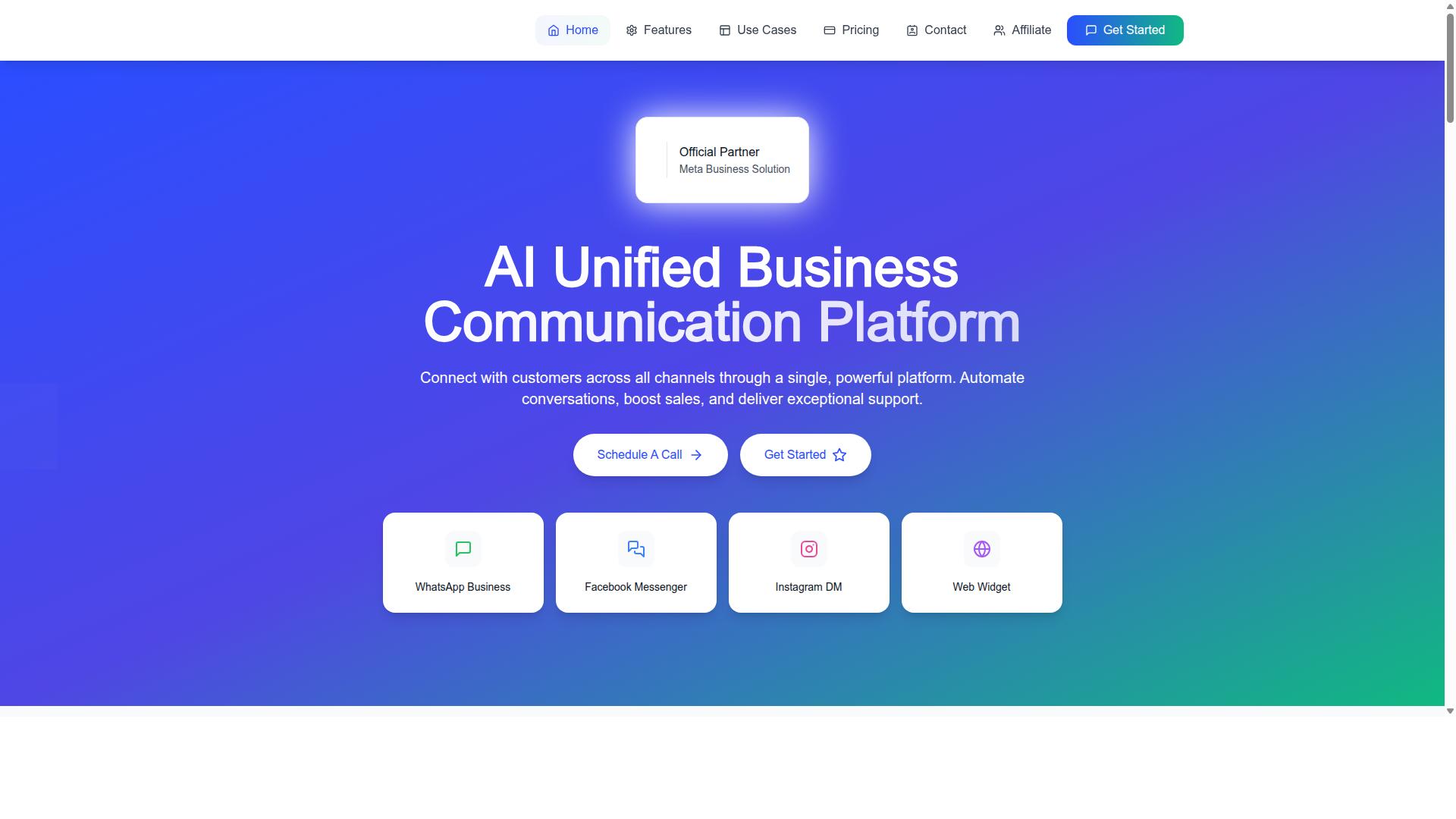
Com.bot's Visual Bot Builder is a drag-and-drop platform designed for support teams, offering a no-code canvas to automate conversations across WhatsApp, Facebook Messenger, Instagram DM, and web widget.
The Visual Bot Builder lets teams assemble conversation flows on a graphical canvas rather than through code.
Channel coverage is built in. Multi-Channel Support spans WhatsApp, Facebook, and Instagram, and the WhatsApp Business API integration connects the platform to the messaging app many customers already use daily.
For teams that need to move beyond conversation, Com.bot includes Native Payments for WhatsApp transactions, so payment collection can sit inside the same flow as support and order updates.
On the operational side, the Unified Team Inbox brings conversations into one place for agents, supported by Team Collaboration with role-based access. The Automation Builder extends reach with 1000+ integrations, connecting the bot to the wider toolset a support organization relies on.
Com.bot also offers adjacent products that share the same automation philosophy: Tasks.Bot for enterprise-grade task automations, Tickets.Bot for event ticketing, and Calendars.Bot for AI appointment booking. For support teams, the practical takeaway is that a visual builder is only as useful as the channels, integrations, and access controls behind it. Com.bot's feature set addresses each of those criteria directly.
Best Practices for Maintaining Your Visual Flows
Maintaining visual flows requires ongoing testing, version control, and performance measurement to ensure they continue to meet evolving customer needs and business goals.
A drag-and-drop interface makes it easy to build a workflow in a visual editor. That same ease can create a false sense of security. A flow that worked well six months ago may now route tickets incorrectly because your product, team, or customer expectations have changed.
Customer support is not static. New products launch, seasonal volume shifts, and agents learn better ways to handle recurring issues. Each change is a reason to revisit the flows behind your ticket management.
Treat every visual flow as a living asset. Schedule regular reviews, assign an owner, and document what each branch is supposed to accomplish. Without that discipline, small gaps in routing or priority assignment quietly pile up.
Testing, Versioning, and Measuring Performance
To keep visual flows effective, implement a testing protocol before deployment, use versioning to track changes, and monitor key performance indicators like resolution time and customer satisfaction.
Start testing in a sandbox environment rather than your live help desk software. A sandbox lets you simulate customer interactions without affecting real support tickets. Walk through each branch of the flow, including edge cases like missing fields or unusual request types.
Validate every drop zone and decision point. If a drag gesture moves a ticket to the wrong queue, the error may not surface until a customer complains. Confirm that routing, priority assignment, and status updates behave as intended before publishing.
Version control keeps changes reversible. Maintain a changelog that records what changed, who changed it, and why. If a new branch causes problems, you can roll back to the previous version instead of rebuilding from scratch.
Performance measurement closes the loop. Track metrics that reflect both efficiency and customer experience:
- Ticket deflection rate, showing how many inquiries resolve without agent involvement
- First response time, revealing whether routing sends tickets to the right queue quickly
- Resolution time, indicating whether priority assignment matches real urgency
- Customer satisfaction (CSAT), capturing how the overall experience feels to customers
Review these numbers on a regular schedule, such as quarterly, and after any major product or policy change. Many platforms, including Com.bot, offer analytics dashboards that surface this data without manual reporting.
For optimization, consider A/B testing. Run two versions of a flow, perhaps with different routing rules or queue management logic, and compare results over a defined period. Let the data decide which version stays.
Finally, keep usability and accessibility in mind as flows evolve. A visual editor relies on mouse interaction, but agents may also use a touchscreen or keyboard alternative. Clear labels, sensible drop zones, and screen reader support keep the interface usable for everyone on your team.